If you are using your Windows 7 computer in a non-private area and need to lock your screen when you are away from your computer, you can easily do so using Win + L. However, if you prefer to use the mouse, you can create a shortcut on the desktop to lock the screen.
NOTE: This shortcut will also work in Windows Vista and Windows XP.
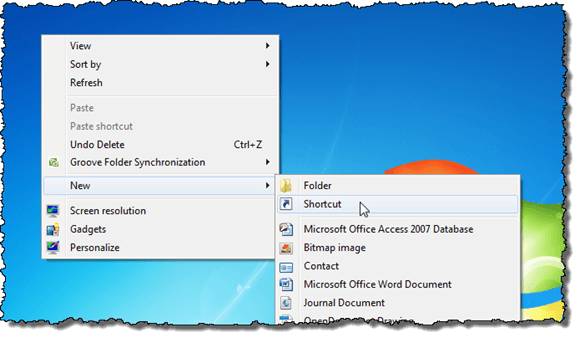
To create a shortcut on your desktop to lock the screen, right-click on the desktop and select New | Shortcut from the popup menu.
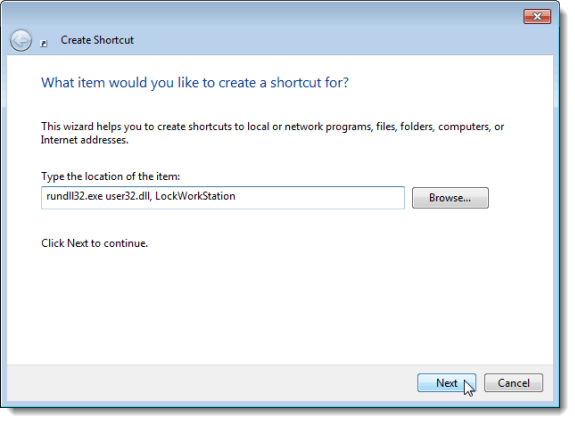
The Create Shortcut dialog box displays. Enter the following line in the Type the location of the item edit box and click Next.
rundll32.exe user32.dll, LockWorkStation
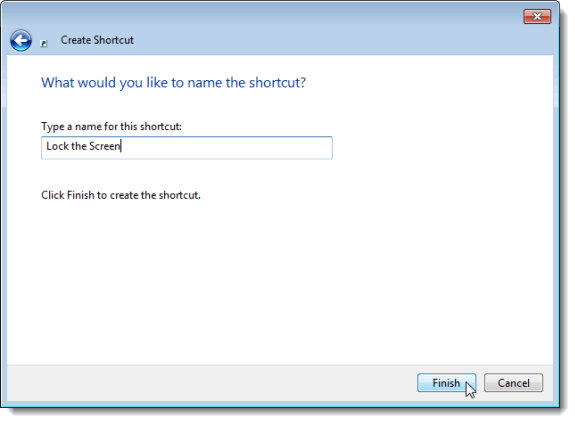
Enter a name for the shortcut, such as Lock the Screen, in the Type a name for this shortcut edit box and click Finish.
The shortcut is added to the desktop. Click and drag the shortcut to move it where you want it located on your desktop.
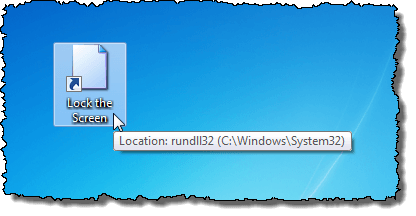
Now, simply double-click the new shortcut to lock the screen.

Creating a shortcut on the desktop to lock the screen provides you with two options for locking the screen, using the keyboard or using the mouse.


No comments:
Post a Comment