Do you need to access files as root often in Ubuntu, but prefer to work in a graphical file browser? There are ways to open the Nautilus File Browser with root access.
One way is to press Alt + F2 to open the Run Application dialog box. Enter the following into the edit box and click Run.
gksu nautilus
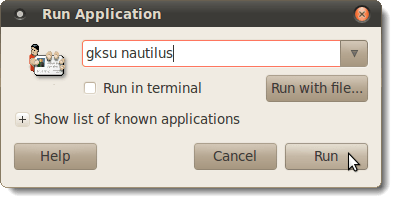
The File Browser opens into the root home directory.
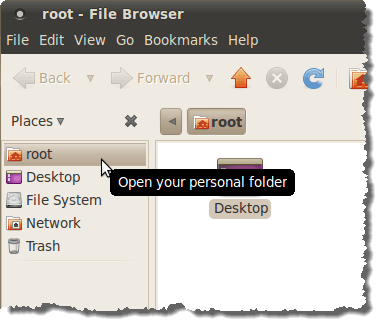
You can navigate to your own home directory by clicking on File System under Places.
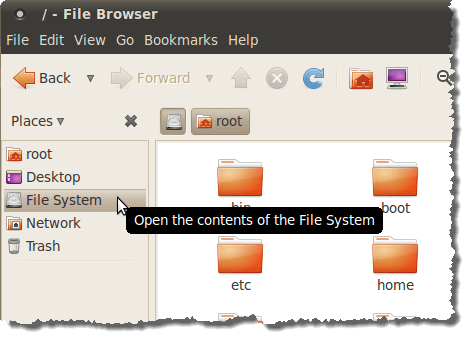
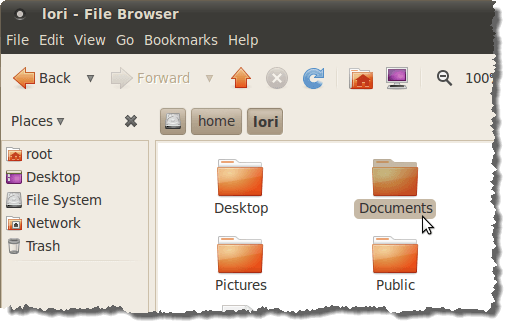
Then, click the home folder icon and then the folder icon with your user name.
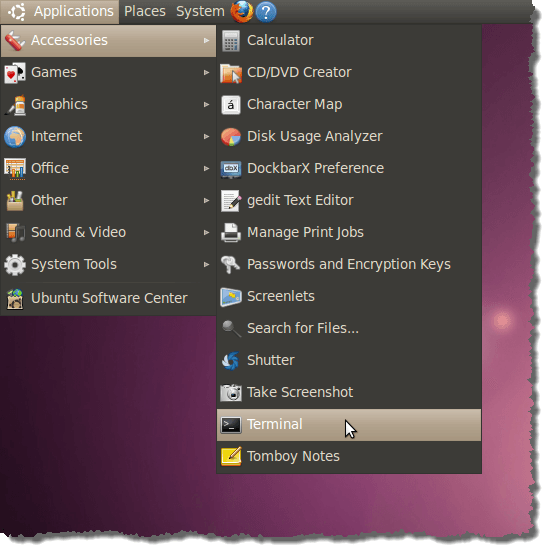
Another method of accessing the Nautilus File Browser as root, is to add an item to the Applications | System Tools menu to open Nautilus as root. To do this, open a Terminal window by selecting Accessories | Terminal from the Applications menu.
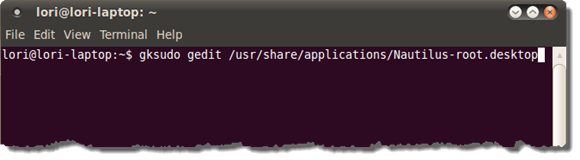
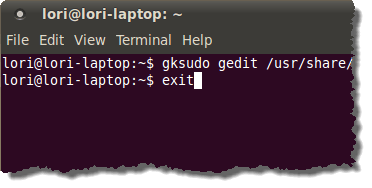
Enter the following line at the prompt and press Enter.
gksudo gedit /usr/share/applications/Nautilus-root.desktop
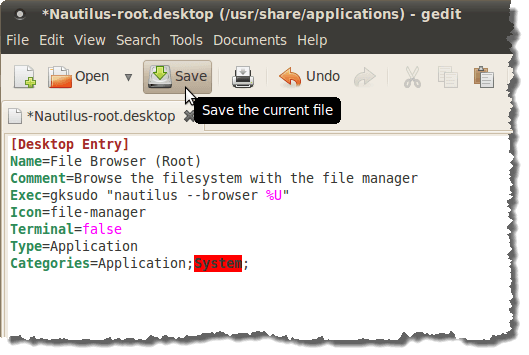
Gedit opens with the Nautilus-root.desktop file active. Enter the following lines into the file and click Save.
[Desktop Entry]
Name=File Browser (Root)
Comment=Browse the filesystem with the file manager
Exec=gksudo “nautilus –browser %U”
Icon=file-manager
Terminal=false
Type=Application
Categories=Application;System;
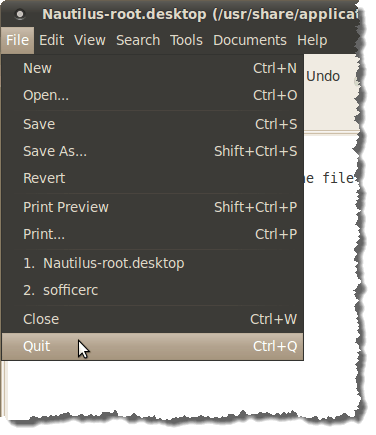
Close gedit by selecting Quit from the File menu.
Close the Terminal window by typing “exit” (without the quotes) at the prompt and pressing Enter.
You should now have a File Browser (Root) option on the Applications | System Tools menu.
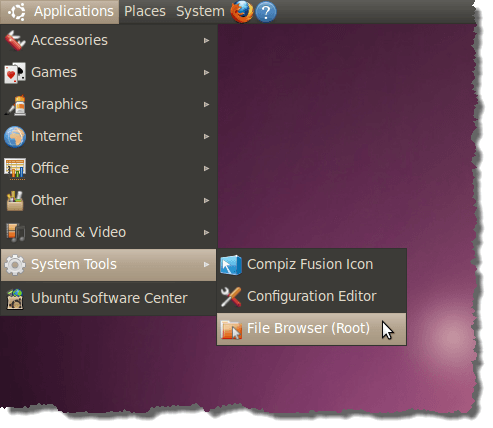
This new option allows you to enter a session of Nautilus with full write permissions.


No comments:
Post a Comment