Tips & Tricks, Tutorials, Hacking, Troubleshooting,

If you have a lot of fields in your Word document that you are not going to be updating, you may want to convert them to plain text. To do this, you will want to easily find your fields by turning on the field shading.

This post shows you how to turn on and off the field shading in Word 2003, Word 2007, and Word 2010. We will also show you the steps to convert fields to plain text, which are the same in all three versions.

Turn On and Off Field Shading in Word 2003

To turn on or off field shading in Word 2003, select Options from the Tools menu.
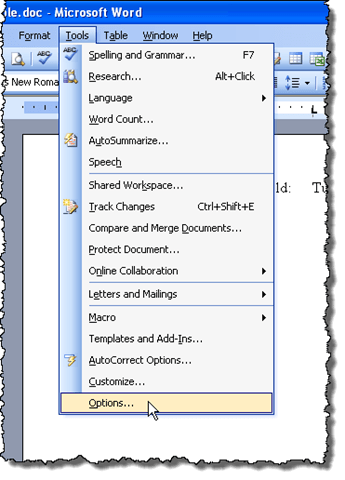
Selecting Options from the Tools menu in Word 2003

The Options dialog box displays. To turn off field shading, select Never from the Field shading drop-down list. To display field shading all the time, even when the field is not selected or the cursor is not in the field, select Always from the Field shading drop-down list.

This allows you to see your fields in your document at a glance. If you only want to see the field shading when the field is selected, or the cursor is in the field, select When selected from the Field shading drop-down list. This is the default choice when you install Word.
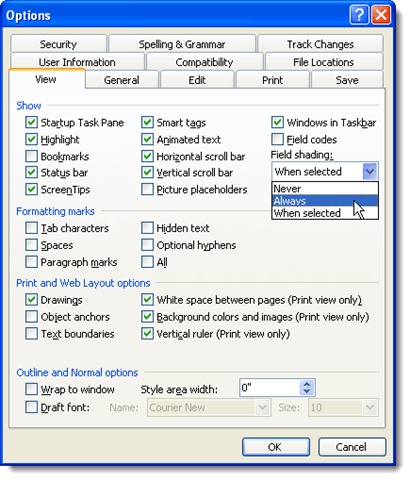
Selecting to Always show the Field shading in Word 2003

Click OK on the Options dialog box to accept your changes and close the dialog box.

Closing the Options dialog box in Word 2003

If you selected Always, you will notice that fields are highlighted even when the cursor is not in the field.

Example of field shading in Word 2003

If you see what looks like code in your date field, for example, rather than the date, that means the field codes are being displayed rather than the value of the field. To view the value of the field, right-click in the field and select Toggle Field Codes from the popup menu. You will then see the date, as in the example image above.
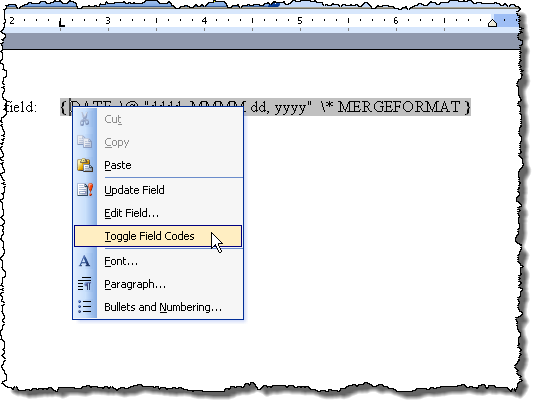
Selecting Toggle Field Codes in Word 2003

If some or all of your fields show the field codes, you can display the values of all the fields by pressing Ctrl + A to select all the text in your document, right-clicking anywhere on the text, and selecting Toggle Field Codes from the popup menu.

You may have to select the option twice until the values of your fields display. The fields are all converted to the same state, even if some display field codes and some display values.

Turn On and Off Field Shading in Word 2007 and Word 2010

The procedure for turning on or off field shading in Word 2007 is essentially the same as in Word 2010. We will show you the steps for Word 2007 and point out the few differences for Word 2010. To start, click the Office button.
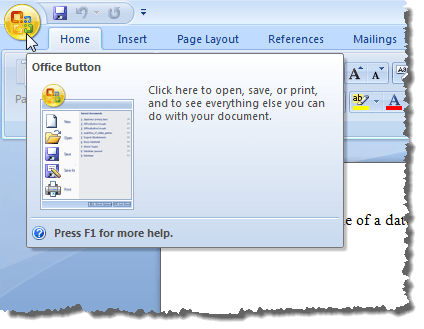
Clicking the Office button in Word 2007

Click the Word Options button at the bottom of the Office menu.
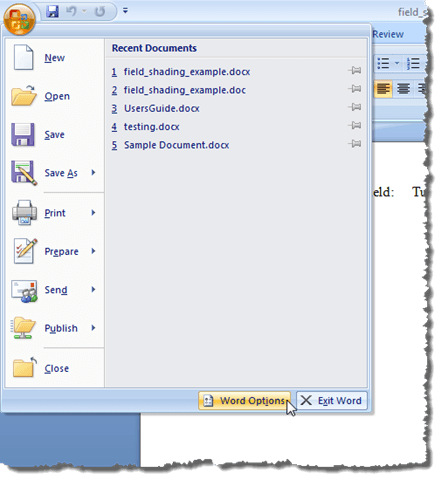
Clicking Word Options in Word 2007

To access Word Options in Word 2010, click the File tab.
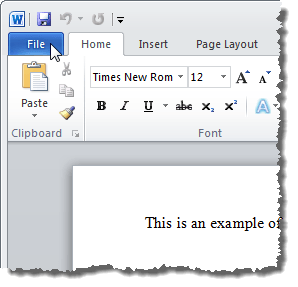
Clicking the File tab in Word 2010

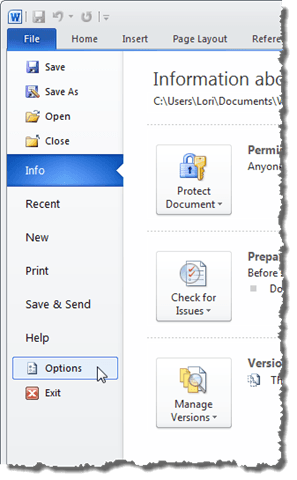
On the File tab, click Options.

Clicking Options on the File tab in Word 2010

The rest of the steps are the same for Word 2007 and Word 2010. On the Word Options dialog box, click Advanced in the list on the left.
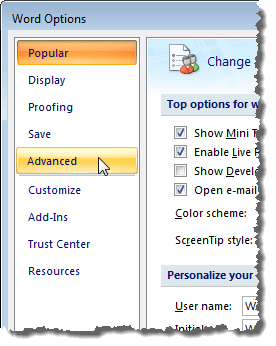
Clicking Advanced on the Word Options dialog box in Word 2007

Scroll down to the Show document content section. Select the desired option from the Field shading drop-down list. The options perform the same functions as described for Word 2003 above.
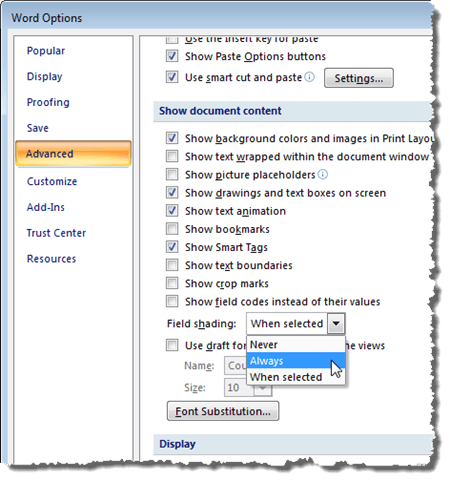
Selecting to Always show the Field shading in Word 2007

Click OK on the Word Options dialog box to accept your changes and close the dialog box.

Closing the Word Options dialog box in Word 2007

Again, if you selected Always, the field shading displays even if the cursor is not in the field.
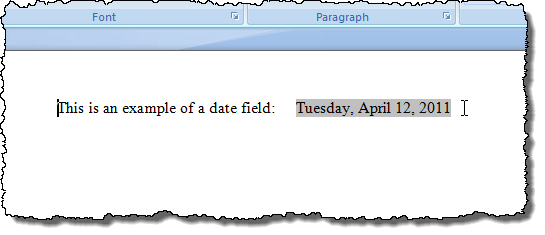
Example of field shading in Word 2007

You can toggle the field codes the same way as described for Word 2003 above.

Update Fields

If you decide that you will not need to update a field anymore and you want to convert it to text, you can easily do so. However, first, you should update the field to make sure the value of the field is up-to-date. To do this in Word 2003, right-click on the field and select Update Field from the popup menu.

NOTE: You can also press F9 to update a selected field. If you want to update all the fields in a document, press Ctrl + A to select all the text in the document, including the fields, and press F9. All the fields in the document will be updated.
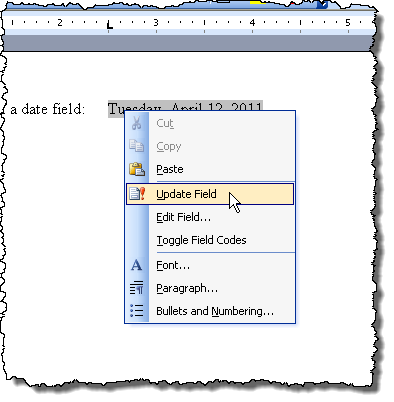
Updating a field in Word 2003

To update a field in Word 2007 and Word 2010, put the cursor in the field and either click the Update button that displays above the field or press F9.

NOTE: You can update all of the fields in your document the same way as described above for Word 2003.

Updating a field in Word 2007

Convert Fields to Plain Text

Converting a field to plain text is done the same way in all three versions of Word discussed in this post. Simply, put the cursor in the field you want to convert to text and press Ctrl + Shift + F9. The field is converted to text as the last value it contained when it was a field.
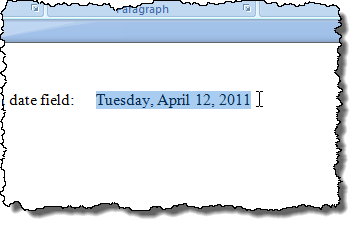
A field unlinked and converted to plain text

If you change your mind, and want to convert the text back to a field, you can undo the Unlink Fields action by clicking the Undo button on the Quick Access toolbar or press Ctrl + Z.

Undoing the Unlink Fields action

If you want to convert all of your fields to text, you can select all of the text in your document as described earlier in this post (Ctrl + A) and then press Ctrl + Shift + F9. You will then have no more fields in your document.

OpenOffice (and LibreOffice, which is actually the program shown in the screenshots), is a powerful office suite, available for Mac, Windows and Linux. It comes with different applications, which help with a variety of tasks.

It comes with a word processor, spreadsheet, presentation creator, database, drawing program and equation editor. Each is its own separate program, although they each share a fairly similar interface.

And that interface can be a bit messy. Take, for example, Writer, the word processing program. Here is what the toolbars look like, by default:

Default Toolbars

And those are only the two toolbars that are visible! There is an old joke about Microsoft Word, and how each new version seemed to add new toolbars and functions, until there was hardly any room to write. It was funny, because it was true. And it’s true of OpenOffice as well. In fact, if you turned on every available toolbar, it would look like this:

All Toolbars Turned On

Obviously, that’s a bit silly, but even with just the two default toolbars, there are likely some functions you won’t need, while others you do need are buried in the menus. Here’s how to edit them so that the functionality you want is always visible.

The first step is to figure out what particular tools are available, which ones you want to use, and which you don’t need. To figure out the available tools on any particular toolbar, simply move your mouse to the end of any toolbar, and click the navigation button that appears at the end of every toolbar, as shown:

Toolbar Options

What we want from this menu is the list that will appear when navigating to Visible Buttons. Here is the list of options for the Insert menu (not shown by default in OpenOffice).

Insert Menu Visible Buttons

As you can see, certain options, such as Comment, Bookmark and AutoText, are highlighted, so the button is visible on the toolbar. Other items, such as Cross-reference, File and Controls, are not highlighted, so will not be visible on the toolbar.

Making an item visible is as simple as making sure it’s selected in this menu, while hiding an item is as simple as making sure it isn’t selected.

Going through this process, you’ll likely come up with a variety of features that you use, but that you don’t need the buttons for. A good example of this might be bold, italics and underline. In practically any word processor, or almost any operating system, the act of making text bold, italicized or underlined can be accomplished without the toolbar buttons.

Simply type Ctrl-B, Ctrl-I or Ctrl-U (substitute Ctrl with the Apple key if using Mac OS X), to get the required effect. Similarly, Ctrl-O will open a document, Ctrl-N creates a new one, and Ctrl-P brings up the print dialog. Chances are you don’t need these buttons, so why keep them in the toolbar, taking up room and cluttering the interface?

This article isn’t going to provide a recommended toolbar, but with a little bit of thought, you can easily pare down the default toolbar to something a bit sleeker, and more efficient, like this:

Pared Down Toolbar

What was done here was to take the two default toolbars, remove a lot of commonly-used items that can easily be accessed via keyboard shortcuts, and then moving the lower toolbar to the same line as the top toolbar, so that only one line is used. It won’t be perfect for everyone, but something like this can easily be accomplished and will be helpful for most users.

If you’ll only be doing a little bit of adjusting to your toolbars, the way shown is just fine. However, if you’ll want to adjust a lot of toolbar buttons, then choose the Customize Toolbar option as shown.

Customize Toolbar Option

This will bring up a new window where you can accomplish the same thing as outlined above, but by simply ticking and unticking checkboxes.

Customize Window

Finally, when you’ve adjusted all the menus, you can combine multiple toolbars, so they take up less space. Simply grab a toolbar at the far left edge, as shown.

Grab A Toolbar

The mouse cursor will change to a little grabbing fist (not shown), and you can then drag to reposition any toolbar. Toolbars can be above the page, below, or even to the side (vertically). It’s a very customizable interface, and can pretty much be set however you like it.

When you’re done, you can make things even more efficient by locking your toolbars. To do this, right click on any toolbar item and choose the Lock Toolbar Position.

Lock Toolbar Position

You should now have a sleek, slimmed-down toolbar that has only the tools you need on it, and none of the ones you don’t.

Once you have finished a first draft of your Word 2010 document, you may view it in Print Preview mode. Besides looking at the layout of the document, you may notice errors that need correcting. Instead of closing Print Preview, correcting the errors, and opening Print Preview again to make sure the document layout is still acceptable, there is a way to change text in Print Preview mode.

NOTE: This feature is not available in versions of Word earlier than 2010, such as Word 2007 and Word 2003.

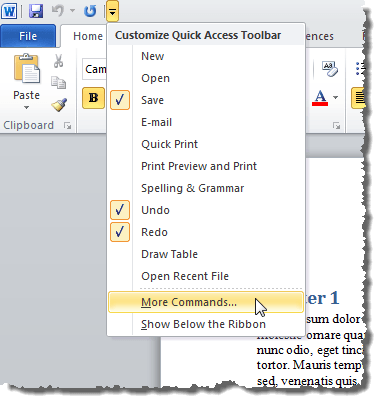
To be able to edit a document in Print Preview mode, you need to add a special button to the Quick Access Toolbar. To do this, click the down arrow on the right side of the Quick Access Toolbar and select More Commands from the drop-down menu.

Selecting More Commands from the Quick Access Toolbar menu

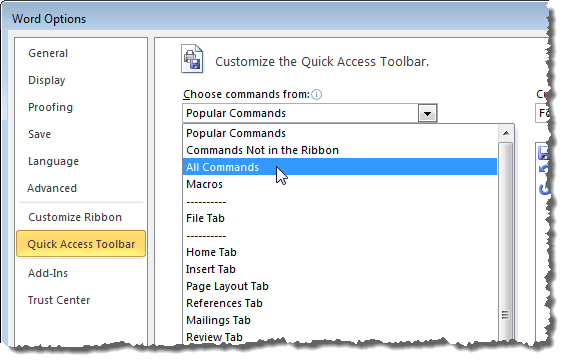
The Customize the Quick Access Toolbar screen on the Word Options dialog box displays. Select All Commands from the Choose commands from drop-down list.

Selecting All Commands from the Choose command from drop-down list

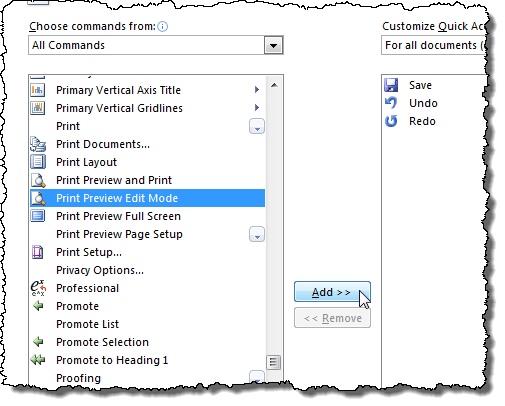
Scroll down in the list below the Choose commands from drop-down list and select the Print Preview Edit Mode command. Click Add to add it to the Quick Access Toolbar.

Adding the Print Preview Edit Mode button to the Quick Access Toolbar

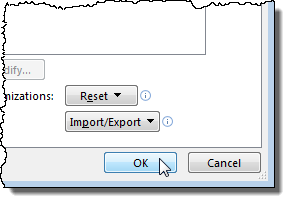
Click OK to close the Word Options dialog box.

Closing the Word Options dialog box

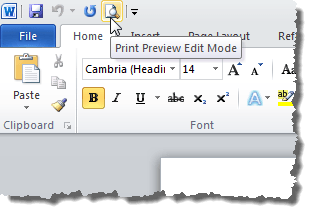
With your document open, click the Print Preview Edit Mode button on the Quick Access Toolbar.

Clicking the Print Preview Edit Mode button on the Quick Access Toolbar

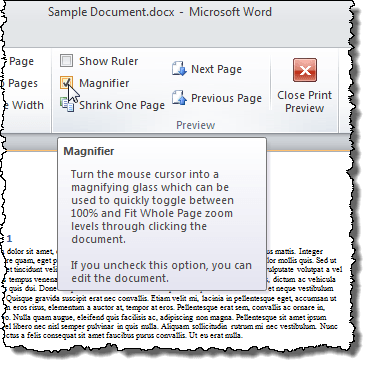
To be able to edit the document in Print Preview mode, you must turn off the magnifier. To do this, select the Magnifier check box in the Preview section of the Print Preview tab so there is NO check mark in the box.

Turning off the Magnifier

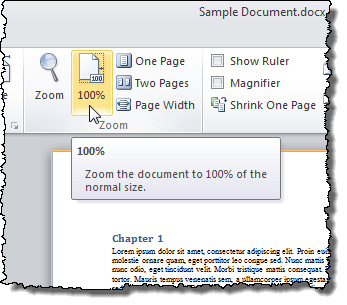
By default, the page is fit to the screen, so the text might be very small. To view the text at full size so it’s easier to read, click the 100% button in the Zoom section of the Print Preview tab.

Zooming in to 100%

Now you can easily edit the text in your document while how your changes affect the layout of the document.

Editing a document in Print Preview mode

To go back to the normal editing view of your document, click the Close Print Preview button on the Print Preview tab.

Closing Print Preview mode

You can do basic editing in Print Preview mode. However, if you need to remove or insert page breaks, insert or change tables, or other more complicated editing or formatting, you must close the Print Preview mode and return to one of the normal document views listed on the View tab.

Starting with Ubuntu 11.04, the default media library software will become Banshee. Banshee is a feature-filled application that has a lot to offer, including not only the Ubuntu Music Store (powered by 7Digital), but the Amazon MP3 Store.

For a lot of us, this is a huge deal, as Amazon offers great prices and good quality, but the MP3 downloader they have available isn’t kept very up-to-date. Purchasing and downloading music from the Amazon MP3 Store isn’t too difficult. Here’s how, starting with installing Banshee.

Installing Banshee

In Ubuntu 11.04, Banshee will be the default player, so this step is unnecessary, but if you’re using an older version (of either Ubuntu or Banshee), you’ll want to make sure you have the newest version of Banshee, which will include the store. To do this, first open a Terminal.

Open Terminal

Once the Terminal is open, type the following:

sudo apt-add-repository ppa:banshee-team/ppa

You’ll likely be asked for your password, so provide that. Ubuntu will go through the process of adding the Banshee Team PPA to your sources file, as well as adding the encryption key. When this is finished (it should only take a few seconds), type:

sudo apt-get update

This will update your packages, so the new version of Banshee is visible to your package manager. If you have an old version of Banshee, type the following:

sudo apt-get upgrade

This will overwrite your old version of Banshee with the new one. If you don’t have Banshee installed, simply type the following to install it:

sudo apt-get install banshee

This will install Banshee, along with its requirements. Go ahead and close the Terminal window; you’re now ready to use Banshee.

Using Banshee with the Amazon MP3 Store

First, start Banshee. It can be found in the Applications menu under Sound & Video.

Open Banshee

When it opens, you’ll see Banshee’s main interface. As shown, no items have been added to its library, but if you’ve already been using Banshee, your songs will appear.

Banshee Media Player

Take note of the last few items in the left sidebar, the Online Media section.

Online Media Sidebar

As you might imagine, we want the Amazon MP3 Store entry. Click it, and the Amazon MP3 Store will load, right in your Banshee window.

Amazon MP3 Store

As you can see, this is the standard interface that you’d see if you opened your browser to the Amazon MP3 Store. The first thing we’ll do is sign in. Even if you’ve used the Amazon MP3 Store through your browser, you’ll need to do this. So, click the Sign in link at the top of the page.

Sign In

When the sign-in page loads, fill in your credentials. From now on, Banshee will remember them.

Fill In Credentials

You can now search, browse and see recommendations on the Amazon MP3 Store, just as you could through the browser. You can even listen to previews. This is pretty nice integration, since this feature – in your browser – requires the Flash plugin. Banshee, however, is able to do this without, so previews work, just as you’d expect, except it’s Banshee playing the preview, instead of Flash.

Listening to a Song Preview

When you’re ready to purchase an item, just click the Get MP3 Album button.

Click To Purchase

Depending on how you’ve set your 1-Click purchase settings, you may now be asked for your information, or the purchase might go through immediately.

Purchase Review

You’ll now see a new element appear at the bottom of your sidebar. This is your purchase being downloaded directly to your hard drive, from within Banshee.

Download in Progress

There is no need to install the Amazon MP3 Downloader, as Banshee does it all for you. When the download is complete, your music will be placed in your music library, properly tagged and with cover art ready to go.

New Album In Library

Before that, however, notice that a new option is available in the Amazon MP3 Store. Amazon recently launched their Cloud Player, which allows users to listen to their purchases wherever they are, as long as they have an Internet connection.

Users get 5 GB for free, but with the purchase of any album, that is bumped to 20 GB for a full year. To add your purchase to your Cloud Drive, so it can be accessed with the Cloud Player, click the button shown below:

Add To Cloud Drive

Your music (once you’ve accepted the Cloud Drive/Cloud Player terms and conditions), will appear and be available, for free, from over the Web.

Cloud Player

And that’s it! With just a few steps, you have intalled Banshee, set up the Amazon MP3 Store, purchased an album, downloaded it into your Desktop music library, and made it available to you through the Cloud Player. Not bad!

You have found a site containing a free download you want but you don’t want to enter your main email address to get the link for fear of getting a lot of spam from the site. A good option is to use a temporary email address. 10 Minute Mail can help you there.

When you go to the 10 Minute Mail site, you get a temporary email address that is good for 10 minutes. Copy the email address in the edit box and use it on sites where you don’t want to give your own email address.

You get messages at that temporary address that you can view directly on the 10 Minute Mail site until the 10 minutes are up. You can reply to messages, click links in messages, and forward message to yourself, if you find you want to keep them.

10 Minute Mail website

If you need more than 10 minutes, you can click the 10 more minutes! link. You can also change the language for the page to one of 37 languages using the Choose Your Language drop-down list.

Using 10 Minute Mail is a good way to sign up for downloads where you have to confirm your email address to get the download link.