Tips & Tricks, Tutorials, Hacking, Troubleshooting,

A number of newer Linux applications (GNOME Do and Docky are two examples that quickly come to mind), either don’t work, or are less than optimal without using a compositing-enabled window manager.

The best example of a compositing window manager is Compiz. Compiz allows for a great number of 3D effects and animations that add a level of both functionality and yes, fun, to the Linux desktop. Of course, not every computer is able to handle the system load Compiz requires, while other people simply don’t want the GUI effects. But many people still want the nice features and ease-of-use programs like GNOME Do or Docky provide. So what is there to do?

Not everyone is aware of this, but Metacity, the built-in GNOME Linux window manager, offers compositing, although in a very basic fashion. So following this tutorial won’t give you all the neat effects that Compiz offers, but it should use less memory while still allowing those “compositing required” programs to operate.

Use Metacity Instead of Compiz

The first step is to start using Metacity as the window manager instead of Compiz. This is a pretty simple step. First, open up the Run Dialog, by typing Alt-F2 (assuming you haven’t used this guide and changed it to something else).

Run Dialog

When the window appears, type the following:

metacity –replace

This starts Metacity with the command to replace any currently running window manager. If we attempted to start metacity without the “–replace” argument, we would get a warning that metacity could not be started as the current display already has a window manager.

Once this is done, you’ll likely notice one or two things. First is that you no longer have fancy drop shadows behind your windows. This is to be expected, as Metacity – by default – has compositing turned off. Second is that if you were running a program like Docky, it might have thrown a warning message that it requires compositing, and might have actually stopped working. This is fine; when we’re done, we can always restart it.

Turning on Metacity Compositing

This is also pretty simple, and can be done using the Configuration Editor. This isn’t shown by default in many Linux distributions, but can always be invoked by typing the following (again into the Run Dialog):

gconf-editor

This should open up the following window:

Configuration Editor

To get to the Metacity settings, double click the apps entry in the left sidebar to show the list of applications with available settings.

Apps Option in Sidebar

Now scroll down to metacity, double-click it and choose the general option.

Metacity General Options

Finally, scroll down the list of options to the right until you see this:

Compositing Manager Option

To turn on basic compositing, all we need to do is tick the checkbox.

Tick the Compositing Manager Checkbox

Metacity will immediately restart (there may be some flashing or flickering), and when your windows return, compositing will be turned on, and you’ll notice that your drop shadows have returned as well. You can now quit the Configuration Editor. Below is an example of the corner of a window without compositing, and then with compositing, you’ll notice the drop shadow, one of the many benefits of using a compositing window manager.

Without and With Compositing

Remove Compiz

If you think you’ll never use Compiz again, you can remove it from your computer using the package manager. However, a simpler way to do this is by typing the following (into a Terminal):

sudo apt-get remove compiz*

The asterisk ensures that any library or plugin associated with Compiz will be removed, and not simply those that contain “compiz” in their name. When the process is over, go ahead and restart, and your computer will start up as normal, only now it will be using Metacity instead of Compiz.

If, however, you want to keep Compiz installed, you may find that the next time you restart your computer, you’re back to using it instead of Metacity’s built-in compositing. If this is the case, we have one more step, and that is to set Metacity to always run at startup, which will keep Compiz from running as our default window manager.

Set Metacity to Run at Computer Startup

First is to open the Startup Applications window, which can be found under your System menu.

System Menu

Navigate to the Preferences submenu, and finally to Startup Applications.

Startup Applications

Click the Add button, then copy the information shown in the following image:

Add Startup Program

The “metacity –replace” command, just as before, launches Metacity with the option to replace any currently running window manager. With this command, if Compiz is running, it will be replaced by Metacity.

And that’s it! You should now have a computer that uses Metacity’s built-in compositing abilities instead of Compiz. This should free up some system resources, a very valuable thing – especially for those older computers with issues running the more resource-hungry Compiz – while still providing that little bit of compositing required for some programs.

In offices and universities where dozens or hundreds of computers are used, administrators must ensure that noise is kept to a minimum to avoid annoying other workers.

One method is to remove all speakers from the working environment but this is often impractical since many PC users rely on sound to get work done. Administrators do, however, eliminate all unnecessary sounds that emanate from Windows 7. Learn how to turn off the Windows startup sound for all users of Windows 7.

Why Turn off the Startup Sound for all Users?

Although Windows 7 is capable of many multimedia features, constant sound from many computers creates a noisy and distracting environment for workers in an office or students in a university. This is especially true in service centers and computers labs where all PC users are in one large room. Reducing white noise in these environments is the administrator’s job.

Every time a PC running Windows 7 is turned on or restarted, the operating system plays the startup sound by default. Rather than turning off the startup sound on a PC-by-PC or user-by-user basis, administrators can use a group policy to turn it off for all users of Windows 7. This also prevents users from turning it back on by themselves.

Turning off the Startup Sound for All Users of Windows 7

To make the policy change described here, you must first log in to Windows 7 using an account that has administrative privileges. Once you do, click on Start>Run to open the Run dialogue box. If you don’t have the Run command on your Start menu, hold down the Windows key on your keyboard and press the R key. Type gpedit.msc into the Run dialogue box and click the OK button.

You are now looking at the Local Group Policy Editor. In the left hand pane, locate the policies located at Computer Configuration>Administrative Templates>System>Logon. Be sure to click on the Logon folder.

Logon Folder in Local Group Policy Editor

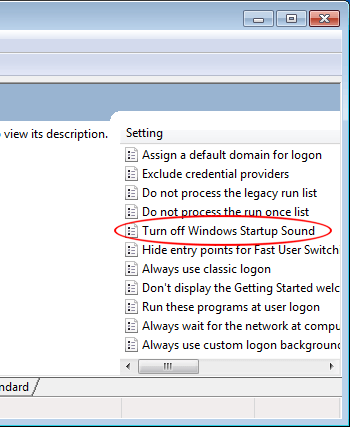
In the right hand pane, locate and double click on the policy titled Turn Off Windows Startup Sound.

Turn Off Windows Startup Sound for All Users of Windows 7

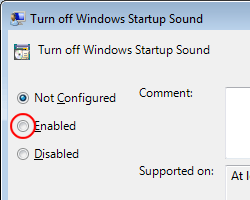
You should now be looking at the Turn Off Windows Startup Sound policy window. If no one else has changed this policy’s settings, the Not Configured option should be selected. Click on the Enabled option, click the OK button, and you are done. Now all users of Windows 7 will have the startup sound disabled.

Enable Turn Off Windows Startup Sound Policy

In large computer rooms such as service centers and university computer labs, too much white noise is a distraction for people trying to get work done. One thing administrators can do is reduce the unnecessary sounds made by Windows 7.

One of the first sounds that can go is the startup sound. This is especially true in mornings when PCs are turned on for the first time that day. Of course, there are other sounds that administrators should turn off to create as silent an environment as possible for workers and students. The startup sound, however, is a good place to start.

There are many ways to convert a CD to MP3 or other format, many of them as simple as point-and-click. Sometimes, though, there’s nothing quite like getting your hands dirty and using the Terminal. That’s what this article covers: ripping a CD in the Terminal using cdparanoia, and then converting those files to MP3 using LAME.

Ripping the CD with cdparanoia

The cdparanoia ripping tool is often considered among the best tools for ripping CDs available. It rips the data directly from the CD, with no analog step between, and is also good at reporting any jitter it senses while ripping, so you know that your CD rip is as close to the original as possible.

To install cdparanoia in Debian or Ubuntu, type the following into a Terminal:

sudo apt-get install cdparanoia

Any additional libraries will be pulled in and installed along with cdparanoia, and when the installation is complete, you’re ready to go.

First, let’s create a folder on the Desktop, called CDRip, where the ripped tracks will eventually land.

mkdir /home/username/Desktop/CDRip/

Now cd to the directory we just created:

cd /home/ericcflem/Desktop/CDRip/

Insert the CD, and when it has loaded, type the following command:

cdparanoia -B

This tells cdparanoia to batch rip the CDDA tracks from the CD as standard 16-bit WAV files. If you want to learn more about the nuts and bolts of cdparanoia, check out its documentation on the cdparanoia home page.

As cdparanoia works, you’ll see a progress bar for each track, as well as a smiley face which represents any errors or inconsistencies, if present.

Rip Using cdparanoia

Once the rip has ended, your folder will now be full of WAV files and it’s time to convert them to MP3.

Convert WAV to MP3 Using Perl Audio Converter

This is another simple step, which depending on your needs can be done one of two different ways. The first method uses the Perl Audio Converter, a collection of scripts which uses different command line programs to convert to and from a wide range of formats and codecs.

It does much more than we’ll use it for in this tutorial, but even if you never scratch the surface of what it can do, it’s a great tool for converting music. To install it in Ubuntu or Debian (or Mint or other derivatives), type the following:

sudo apt-get install pacpl

Just as with cdparanoia, installing Perl Audio Converter will also grab any dependencies, such as lame or other libraries. Once installed, it’s ready to use with the following command:

pacpl -t mp3 –bitrate 256 *.wav –delete

The above command invokes Perl Audio Converter (pacpl), tells it that we want to convert our files to MP3 (-t mp3), with a bitrate of 256 kb/s (–bitrate 256), then tells it to only convert wav files (*.wav), and when we’re done, to delete the originals (–delete).

While this is happening, you should see not so much a progress, as a notification that each conversion is happening, like this:

PACPL Progress

When Perl Audio Converter is done converting your WAV files to MP3, you will end up with a folder full of MP3 files, all encoded with a bitrate of 256 kb/s; the original WAV files will be deleted, leaving you nothing but the MP3 files.

Convert WAV to MP3 Using LAME

There is another method, and that is to use LAME directly to do the conversion. The big advantage is that Perl Audio Converter doesn’t offer a simple way to do variable bitrate encoding, while LAME does. The advantage to variable bitrate encoding is that each sample is analyzed and is given the correct bitrate, depending on the complexity, so you should get high quality at smaller sizes.

The command used, on the other hand, is a bit more complex:

for file in *.wav; do $(lame -V0 “$file” “${file%.wav}.mp3″); done

Basically, this says that for every file that is in WAV format, we should tell lame to encode that file using the V0 quality setting, giving it the MP3 extension, and then quit when all files have been converted. During this process, because each sample may be different, you’ll get a view of exactly what’s going on.

LAME Progress

This shows a few things, the most important of which are the progress of the conversion, the average bitrate attained during the conversion, and and ETA for when the process will be complete.

Note: This command doesn’t delete the original WAV files, but you can do this manually or by typing “rm *.wav” (without the quotes), from the Terminal while the active folder is the one containing the music we’ve been converting.

And that’s really all you need to know about ripping your CDs and converting them to MP3. It’s a pretty quick process, and once you’re finished you’ll have perfectly encoded music, ready for playback in your portable player or Desktop music application. The only thing left, really, is to properly tag the files, but that’s a topic for another article.

In office settings, many administrators are charged with the task of removing programs and elements from the Windows 7 that distract workers from their tasks. One of the most prevalent of these is removing games from PCs. However, even when games are removed from Windows 7, the Games link still appears on the Start menu. Learn how to remove the Games link from the Windows 7 Start menu.

The Games Link on the Start Menu

Starting with Windows Vista and carried into Microsoft’s latest release of the operating system, the Games link found on the Start menu is supposed to be a single location where all games on the PC are listed. Unfortunately, many users find that the listing is flawed because it lists some games twice, some not at all, and some games just can’t be listed manually.

Administrators often remove games from PCs in commercial settings to prevent workers from wasting time playing games. However, even if all games are removed from Windows 7, the Games link often still appears in the Start menu. Removing the Games link makes the Start menu cleaner and stops workers from wondering where the games went.

Removing the Games Link from the Start Menu

To remove the Games link from the Start menu, you need to edit a local group policy so that the removal affects all users of the PC. First, log in to Windows 7 using an account that has administrative privileges. Click on Start>Run to open the Run dialogue box. If you don’t have the Run command on your Start menu, hold down the Windows key on your keyboard and press the R key. In the Run box, type in gpedit.msc and click the OK button.

Run the Local Group Policy Editor

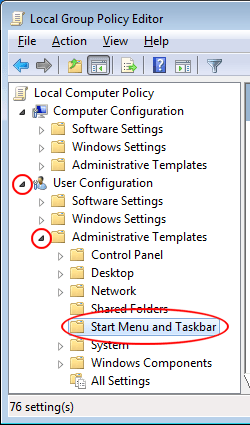
You should now be looking at the Local Group Policy Editor window. In the left hand pane, expand the path to User Configuration>Administrative Templates>Start Menu and Taskbar.

Start Menu and Taskbar in Local Group Policy Editor

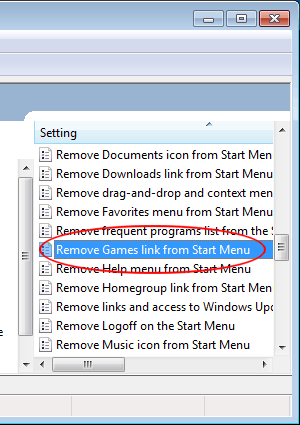
In the right hand pane, locate an entry titled Remove Games Link from the Start Menu. Double click on it to open the window that lets you edit this option’s settings.

Remove Games Link from Start Menu

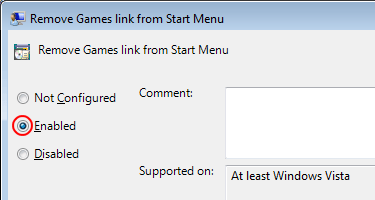
If you or anyone else has not changed this setting, the current state of this option should be Not Configured. Click on the Enabled option, click the OK button, and you are done. Now the Games menu is removed from the Start menu for all users of the PC.

Remove Games Link from Start Menu Enabled

Remember that removing the Games link does not stop users of Windows 7 from accessing games by other means. It also does not stop them from installing their own games on the hard driver. Preventing those events requires making other changes to the computer. The method described here only helps you clean up the Start menu from an unnecessary item.

At the request of business owners and managers, most administrators remove the games from installations of Windows7 in a commercial environment to stop workers from wasting time playing solitaire, chess, or other games that act as distractions from tasks. Removing the games, however, does not usually remove the Games link from the Start menu; you need to do that manually.

In this article we talked about ripping and encoding CDs; here, we’ll cover how to make sure those files are properly tagged. We’ll do this using a program called EasyTAG.

First, though, what exactly is tagging? ID3 tags are little bits of text stored inside the MP3 file itself. These tags are what make it possible for a music player or portable device to show you the artist, album, song title, and even cover art. All that information is stored inside the MP3. Without tags, you’ll see this:

MP3 Without Tags

With tags, you’ll see something else entirely.

MP3 With Tags

Install EasyTAG

EasyTAG is a powerful Linux application that tags MP3, Ogg Vorbis, FLAC and AAC files. To install it in Debian or Ubuntu (or their derivatives), simply type the following into a Terminal window:

sudo apt-get install easytag

If you’ll be using EasyTAG to edit AAC tags, you’ll need to install a version of the program with this command:

sudo apt-get install easytag-aac

Note: Debian users won’t find easytag-aac in the standard Debian repositories, because of licensing issues. To install it, you’ll need to grab it from debian-multimedia.org, a repository created to meet all kinds of multimedia needs.

Using EasyTAG To Edit ID3 Tags

Now that EasyTAG is installed, let’s open it.

Open EasyTAG

You’ll see a huge window, with a ton of different options that can be, to be honest, a bit intimidating.

EasyTAG Main Window

Let’s look at some of the different parts of the interface, to try and learn what EasyTAG can do. As we do this, hopefully its power will become clear.

The first section we’ll highlight is the file browser. This is where we navigate to the folder where our music-to-be-tagged is stored.

Navigate To Music Folder

Click on the folder in the file browser, and in the next pane over, you’ll see all the music files from that folder that EasyTAG can edit.

Track Pane

Some of these may be red. This means that EasyTAG has scanned them and either found errors or is alerting you to changes that need to be saved. Some files will be red for another reason; this is because the version of the ID3 standard they use is older than the version EasyTAG uses, and since EasyTAG updates any “old” versions to the newest one, it is informing you of that change.

You can edit the tag information for single files, or for all files at once (by clicking on an individual song or by highlighting all of them). When you do, you’ll notice certain information appears in a variety of fields in the tag pane, to the right.

Tag Pane

In this image, some tags are already filled in. If they wren’t, or if some info was incorrect, we could just change it. Also, each field has a little checkbox beside it. Once you fill in a field, clicking this box tells EasyTAG that the change should apply to all currently highlighted files. This is a great time saver when filling in the Artist, Album, Year, Genre and other general information, but obviously shouldn’t be used when filling out the Title field!

You’ll also notice a tab near the top of the above image, called Pictures. Click it, and you can add album cover art to your MP3 files.

Picture Tag Pane

Simply drag an image (downloaded from Google Image search, Amazon or anywhere else you find cover art), into the window, or select it by clicking the plus sign on the bottom. To remove cover art already embedded in the MP3, click the red X. Again, to apply this to all MP3 files from the same album, be sure all your files are selected, add the cover art, then click the small square check box.

Automatic Tag Editing

There are two other ways (both fast and fairly automated), to edit tag information. First, you can have EasyTAG scan online metadata databases.

CD DataBase Search

With this feature, EasyTAG scans your files and checks online databases for a match. You can also search manually, in case your file set doesn’t appear. When you find the correct entry, hit the Apply button and EasyTAG will fill in the fields for you.

The other automated method is great for when your MP3 files are consistently named but incorrectly tagged. If you have a folder full of MP3 files all from the same album, it’s logical to have the folder the same name as the album. And that folder could be inside another folder, using the name of the artist. And the MP3 files themselves could be named with the track number and song title in the file name, like this:

01-Song_Title.mp3

If this is the case, choose the Fill Tag(s) option from the Scanner menu, and you’ll see this small window.

Tag and File Name Scan

Just tell EasyTAG the pattern your files and folders use, and based on that information (folder and file names), it will fill in the correct tags based on the pattern. You can also do the opposite: assuming your files are tagged perfectly but are inconsistently named, you can have EasyTAG rename your files based on the tags.

There is a lot more that EasyTAG can do. It’s a big program with a lot of features (and a potentially hefty learning curve), but it’s more than worth the effort. If you’re a Linux user wanting a powerful tool to tag your music, EasyTAG is one of the best tools, if not the best.

Although the Start Menu contains everything you need to control Windows, it is much more convenient to have the programs you use the most just one click away. In previous version of Windows, most notably Windows XP, many users got used to adding their most-used programs to the Quick Launch Toolbar.

Unfortunately, Microsoft removed the Quick Launch Toolbar from Windows 7 leaving only the alternative to pin programs to the Taskbar and Start Menu. However, with just a few easy steps, you can create your own Quick Launch Toolbar and add shortcuts to it just like in Windows XP.

Create a Quick Launch Toolbar in Windows 7

To create a Quick Launch Toolbar in Windows 7, begin by navigating to your My Documents folder. For most users, this folder is located in:

c:\users\\My Documents

where is the name of your Windows 7 account.

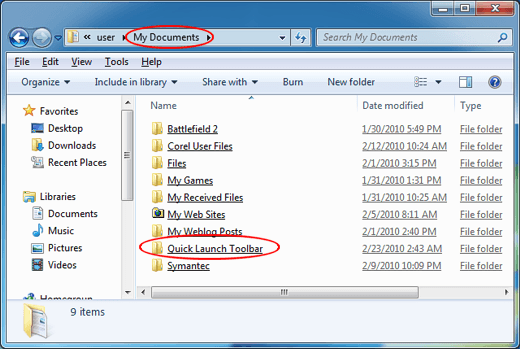
Create a new folder in My Document titled Quick Launch Toolbar. Truthfully, the name of the folder and its location can be anything and anywhere you want. However, the My Documents folder is a convenient place to store the folder and naming it Quick Launch Toolbar will make it easy to find in later steps.

Save Folder in My Documents

Now you need to add shortcuts to the folder. Open up the Quick Launch Toolbar folder you just created and right-click drag a program to the folder. For now, one shortcut is enough. Later you can drag as many shortcuts to the folder that you want.

Right Click Drag Shortcuts to the Folder

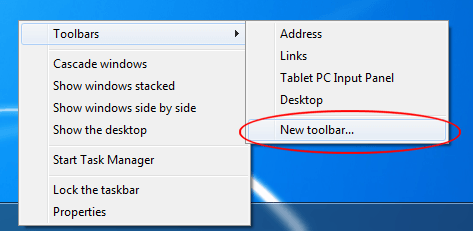
Now, right click on the Windows 7 Taskbar and choose Toolbars and then New Toolbar.

Click on New Toolbar

Locate the Quick Launch Toolbar folder in your my Documents folder and click Select Folder. Notice that Windows 7 has placed your new Quick Launch Toolbar on the very right of the Taskbar. Just like in Windows XP, you can drag the toolbar around on the Taskbar to any location you want.

To make your new Quick Launch Toolbar easier to use, consider removing the title of the toolbar and the text associated with each shortcut. Do this by right-clicking on the anchor of the toolbar and de-selecting Show Text and Show Title.

De-select Show Text and Show Title

After you have added all of the shortcuts you want to the folder you created in My Documents, your new Quick Launch Toolbar will function just as it did in Windows XP.

Quick Launch Toolbar in Windows 7

With each new version of Windows, Microsoft seems to remove some of the most commonly-used features leaving users of the operating system to either get used to a new way of doing something or finding a workaround.

With just a few simple steps, you can recreate the Quick Launch Toolbar in Windows 7 made popular in Windows XP. Using the steps above, you can create any number of toolbars turning them on and off whenever you want. This is one method of making Windows 7 customized to your current task.

One annoyance many people using laptops have discovered when first using Xfce, a popular lightweight desktop environment for Linux, is that their trackpad has the tap-to-click setting stuck “on” with no option to turn it off. Now, it should be said up front that a lot of people like tap-to-click, and if so, good for you. This article probably won’t do you a lot of good. For the rest of who at least want the option to turn off tap-to-click, here’s how to do it, and how to get the setting to stick when you restart your computer.

If you only want to turn off tap-to-click, the following command in the Terminal will do the trick:

synclient MaxTapTime=0

What this does it tell synclient to set the max tap time allowed to zero. This means in practice that any time your finger or palm touches the trackpad for longer than zero (and by definition, any touch is longer than zero), then it isn’t acknowledged as a tap. This isn’t exactly the same as turning off tap-to-click, but if your touchpad doesn’t acknowledge anything as being a tap… it’s just as good.

The problem with the above command is that it needs to be entered once per session. Log out or reboot and you’re right back to where you were before you typed it.

So what we need to do is figure out how to make that setting “stick” between boots. Not a difficult problem, as it turns out. We just need to create a little script.

So, open up a text editor. In Xubuntu, which uses Xfce as its desktop environment, Mousepad is the default text editor. It can be found in the Accessories menu, so open it from there.

Open Mousepad

Once Mousepad is open, type or paste in the following:

#!/bin/bash
# turns off tap-to-click
/usr/bin/synclient MaxTapTime=0

The first line tells the system that the following is a command that will be run in Bash, which is our standard Terminal, so running this script will be exactly the same as if we had typed it manually.

The second line is just a comment (the pound sign at the beginning of the line means it isn’t treated as a command), that reminds us what the command does. And the third line is the actual command. It’s identical to what we typed earlier, except now it has the full path to synclient.

Now save our document, by choosing the Save As option.

Save Script

We’ll want to give it a memorable name; its’ really something so we remember it. Something like TapToClickFix will do.

Give Script a Name

In this image, you can see that we’ve used the name mentioned above, and have elected to save the file to our Desktop.

Now that we’ve saved the script, we need to make it executable. In other words, we need to let the system know that this script can be run as an application. To do this, first right-click on the script and select Properties.

View Properties

When the Properties window appears, click on the Permissions tab and tick the checkbox at the bottom, which will allow the script to run as a program.

Run Script As Program

When you’re done, simply dismiss the window. We now need to move the script to somewhere safe. Your Home folder works well, but the script could also be places in your /usr/bin/ folder if you’d like.

Once you have the script where you want it, there’s one more step (since the script won’t run automatically). We need to add the script to the list of items that are started automatically each time you start your computer. To do this, open the Settings Manager, which can be found in the Settings Menu.

Open Settings Manager

When the Settings Manager opens, click the Session and Startup icon.

Session and Startup Icon

When the Session and Startup window loads, click the Application Autostart tab.

Application Autostart Tab

Now click the Add button at the bottom of the window.

Click The Add Button

A new window will appear. This is how it looks with the necessary information filled in:

Add Application Window

Note: When adding the information to the window as shown above, the Description really isn’t necessary. You can also choose any Name you want. The Command, on the other hand, needs to be the exact path you chose when you saved the script.

And that’s it. Restart or reboot, and you should find that tap-to-click is now turned off. If you ever decide you want it back, simply return to the Session and Startup window, and either remove the item we just added (which will remove it permanently from your startup list), or simply untick the checkbox, which will leave it in available should you change your mind once more, but won’t use it unless you tick the checkbox again.